
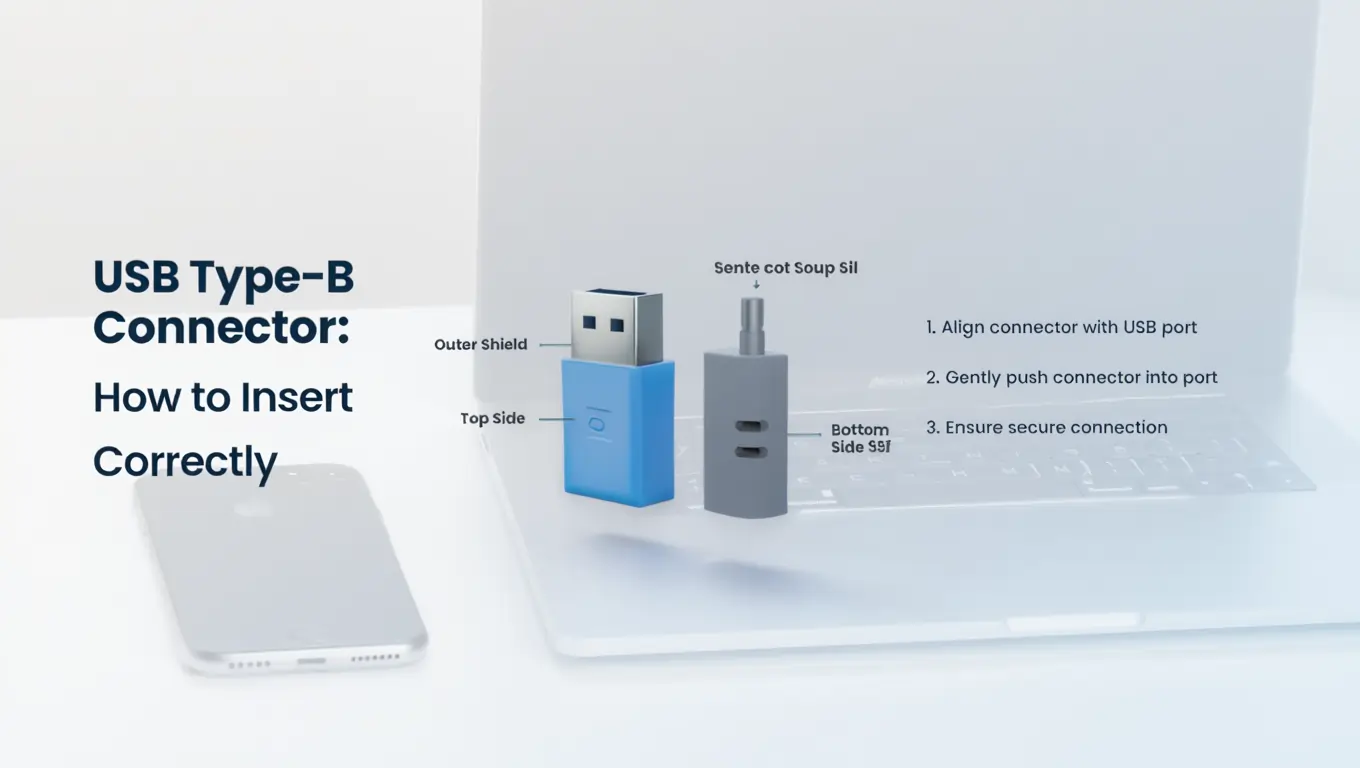
“USB Type-B connector” doesn’t mean “a charger.” It’s the name of the plug shape you see on the device side of many peripherals. Think printers, scanners, studio audio gear, older cameras, small gadgets, and lots of external hard drives from the USB 3.0 era. Type-B came in several shapes over time, which is why the safest way to choose a cable is to match the connector on your device first, then match the computer or charger on the other end. By the end of this guide, you’ll be able to identify each Type-B variant, understand power limits, and pick the right cable without guesswork.
What “USB Type-B” Really Means
USB defines both shapes and rules. In classic USB, the computer or hub is the “A-side,” and the peripheral is the “B-side.” A cable usually has one A plug and one B plug. Over the years, Type-B split into Standard-B, Mini-B, Micro-B, and a SuperSpeed version of Micro-B used by many external drives. These shapes are not interchangeable, so identification by sight is step one.
Standard-B for Printers and Desktop Gear
Standard-B is the familiar, almost-square socket on printers and scanners. It’s sturdy and meant for devices that don’t move much on a desk. You’ll find A-to-B and also C-to-B cables, so even a modern laptop with only USB-C can talk to an older printer without adapters in the middle.
Mini-B for Older Cameras and GPS Units
Mini-B shrank the connector for portable devices in the 2000s. Many point-and-shoot cameras and handheld GPS units used it. It looks different from Micro-B, so don’t assume one will fit the other. If your manual says Mini-B, buy exactly that.
Micro-B for Small Gadgets in the 2010s
Micro-B was everywhere on phones and pocket devices before the world shifted to USB-C. You still see it on power banks, Bluetooth speakers, and older accessories. It’s slim and not reversible, so take care when plugging in to avoid wearing the tiny central tongue.
USB 3.0 Micro-B for External Hard Drives
If your drive’s port looks “wide,” with a split opening, that’s USB 3.0 Micro-B. It adds extra contacts for SuperSpeed data. A regular Micro-B 2.0 plug won’t engage those extra pins, so speeds drop or the link fails. Use the cable that came with the drive, or a replacement clearly labeled “USB 3.0 Micro-B.”
Physical Compatibility, You Should Know
USB 3.0 changed the Standard-B plug by making it a bit taller to add more pins. A USB 3.0 Standard-B plug doesn’t fit a USB 2.0 Standard-B receptacle. Flip the direction, and it’s fine: a USB 2.0 Standard-B plug fits a USB 3.0 Standard-B socket and just runs at USB 2.0 speed. That simple detail prevents many frustrating “why won’t this fit?” moments.
How Power and Charging Actually Work on Type-B
Classic USB ports on a computer supply 5 V. USB 2.0 allows up to 500 mA after negotiation; USB 3.0 raises that baseline to 900 mA. The Battery Charging 1.2 spec introduced special “charging” behaviors so compliant ports and chargers can safely offer up to 1.5 A at 5 V when a device requests it. Most Type-B devices live inside these limits. If you see claims of high-watt “fast charging,” that’s usually happening in the USB-C world with USB Power Delivery rather than on Type-B.
USB Power Delivery is the modern high-power system mainly tied to USB-C. With PD 3.1’s Extended Power Range, compatible C-to-C links can negotiate up to 240 W—far beyond what legacy Type-A/B ecosystems were built for. That’s why new laptops, tablets, and monitors rely on USB-C for both data and big power.
How to Identify Your Type-B Connector by Sight
Start with the device in your hand. Standard-B looks almost square with beveled corners—common on printers. Mini-B is a smaller trapezoid you’ll see on many older cameras. Micro-B is thinner, with a single small tongue. USB 3.0 Micro-B is noticeably wider, like two Micro-B shapes fused. Matching by shape is more reliable than relying on model-year guesses. If you’re unsure, a quick check in the manual or spec sheet will confirm the exact port type.
Choosing the Right Cable for Your Setup
Look at the host side next. If your computer or charger has USB-A, you want A-to-B (or A-to-Mini-B / A-to-Micro-B). If it only has USB-C, buy a single C-to-B cable with the correct device-side shape. Avoid stacking multiple adapters; signal quality and reliability suffer when you chain parts that weren’t designed to work together. A single purpose-built cable is cleaner and exactly what the standards expect for mixing modern hosts with legacy peripherals.
If you move large files to a USB 3.0 hard drive, make sure your cable matches the generation. That wide USB 3.0 Micro-B plug is required for full SuperSpeed performance. Using a USB 2.0 Micro-B cable forces a slow fallback and can cause flaky links. Printers usually don’t care about speed generations, but storage absolutely does.
Build Quality, Ratings, and What they Tell You
Short, well-shielded cables hold voltage and signal integrity better than long, thin, no-name ones. For production or studio work, look for suppliers that follow USB-IF compliance programs for connectors and cables. That certification means the parts were tested against the relevant legacy specs for USB 2.0 and USB 3.x cables and connectors. It’s not a magic guarantee, but it raises your chances of a stable link.
Real-World Scenarios You’ll Actually Face
When you connect a modern USB-C laptop to an older printer, a C-to-Standard-B cable solves it in one hop. The printer still gets its main power from the wall; the USB link handles data and a small amount of 5 V power for the interface. If you’re backing up to a portable HDD and the port on the drive is wide, reach for a USB-C-to-USB-3.0-Micro-B or USB-A-to-USB-3.0-Micro-B cable, depending on your computer. Your transfer speeds and stability depend on getting that detail right.
A Simple Step-by-Step Plan
Begin with the device. Identify the exact Type-B variant by shape. Check the other end you need on the host—USB-A or USB-C. Decide whether your workload needs USB 2.0 or USB 3.0 speeds. Choose a cable that meets the right generation and is only as long as you need. Prefer a single cable over a stack of adapters. With those boxes ticked, you remove 90% of the usual USB headaches.
Troubleshooting Without Stress
If the device isn’t showing up, move to a different USB port and try a shorter or newer cable. For storage that connects but keeps dropping, confirm the cable really is a USB 3.0 Micro-B if the receptacle is wide. For printers that report a communication error, reinstall or update the driver and test with a fresh Standard-B cable—worn contacts do cause intermittent faults. If charging feels slow on a Micro-B gadget, check whether the charger or port supports the Battery Charging 1.2 behavior; many branded wall adapters and some PC ports do.
Where Type-B Sits in a USB-C World
The industry is consolidating around USB-C because it’s reversible, carries modern data rates, and supports USB Power Delivery up to 240 W for devices that need serious power. That doesn’t make your Type-B gear obsolete. Studios, offices, labs, and schools still run a lot of devices with Type-B ports, and they’ll keep doing their job for years. The right legacy cable keeps that gear useful while the rest of your setup moves to USB-C.
FAQ’s
1. Is a USB Type-B Connector the Same as a Charger?
No. Type-B is just the connector shape on the device side. Charging depends on the power standard in use. Classic USB 2.0 and 3.0 ports offer 5 V with current limits that devices negotiate, and Battery Charging 1.2 allows up to 1.5 A when both sides support it. High-watt fast charging is handled by USB-C with Power Delivery, not by legacy Type-B.
2. Why Won’t My Blue-Tipped USB 3.0 Type-B Plug Fit the Old Printer?
USB 3.0 Standard-B plugs are physically taller to carry extra pins. They won’t insert into older USB 2.0 Standard-B jacks. The reverse works: a USB 2.0 Standard-B plug fits a USB 3.0 Standard-B socket and runs at USB 2.0 speed.
3. My External Hard Drive has a Wide Port. What Cable Do I Need?
You need a USB 3.0 Micro-B cable, either A-to-USB-3.0-Micro-B or C-to-USB-3.0-Micro-B, depending on your computer. A regular Micro-B 2.0 cable won’t engage the extra contacts for SuperSpeed, so performance suffers, or the connection fails.
4. Can a USB-C Laptop Connect to a Type-B Device Without Adapters?
Yes. Use a single “C-to-B” cable with the correct device-side shape. That’s the clean, standards-compliant way to link modern USB-C hosts to legacy peripherals.
5. How Much Power Can a Type-B Device Draw Safely?
Over classic data ports, USB 2.0 negotiates up to 500 mA and USB 3.0 up to 900 mA. With Battery Charging 1.2 detection, certain ports and chargers can provide up to 1.5 A at 5 V. Anything beyond that typically uses USB-C with Power Delivery.
Conclusion
The USB Type-B connector is the family of “device-side” plugs that powered decades of printers, cameras, audio interfaces, and drives. To make it work for you today, identify the exact Type-B shape on your device, match the host side to USB-A or USB-C with a single purpose-built cable, and choose the right speed grade when storage is involved. Remember the power limits: classic Type-B setups live in the 5 V world with modest current unless Battery Charging 1.2 is detected, while modern high-watt charging is the domain of USB-C Power Delivery. With those simple rules, you’ll connect old and new hardware confidently and avoid the usual cable roulette.
Read More ➔ USB Type B Charger
