
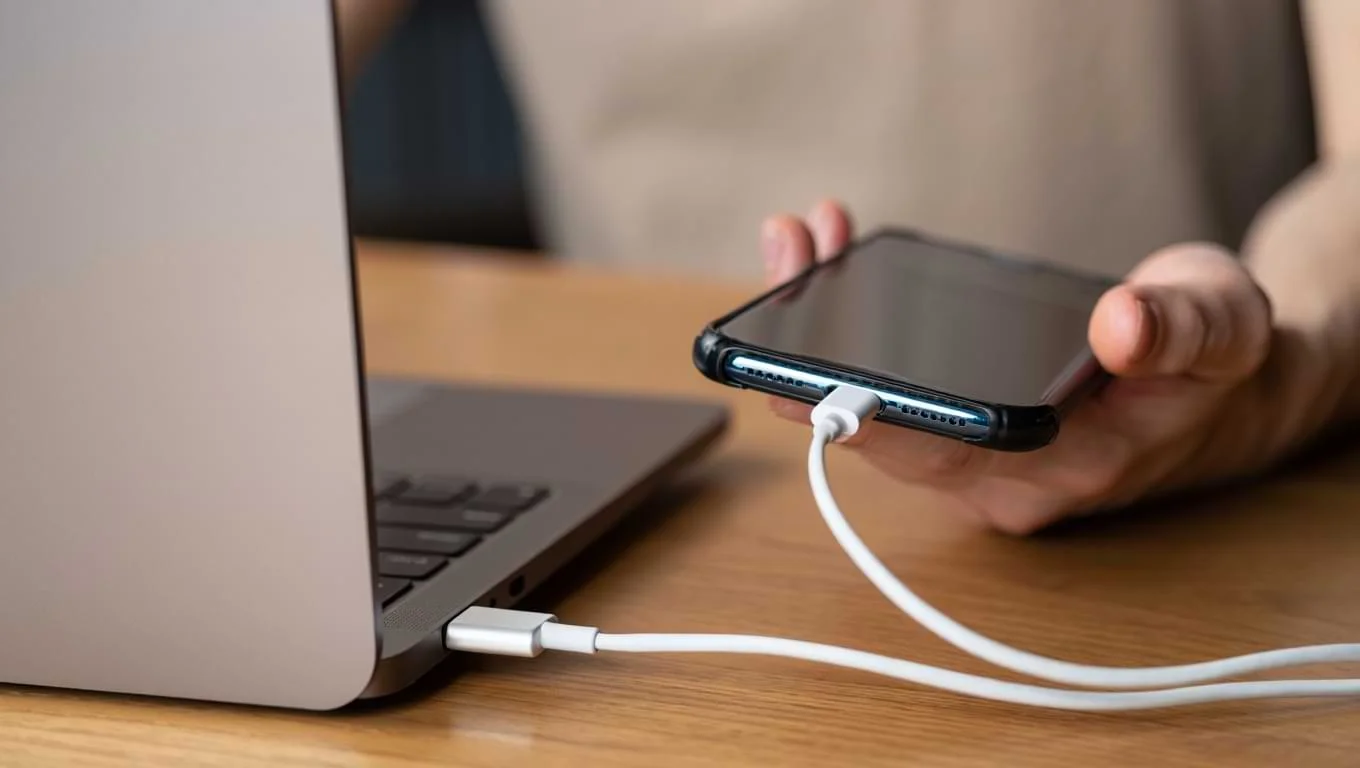
Has it ever happened to you that when you start using a mouse with a laptop and the mouse cable does not fit or the mouse wire gets damaged, it breaks due to repeated shaking, then how angry you get at that time. So to get out of this problem, a new mouse has been selected that has neither the tangle of wires nor the fear of damage. This is a connecting mouse that you can use comfortably, there will be no problem of any kind. It will be a completely normal mouse, only it will not have wires and there will be no problem of damage to the wire. This mouse is specially made for workers so that they can work comfortably, and there is no problem of any kind in it. You can read its full description further.
Why USB C Mice Matter Right Now
Now, new updates are coming to future laptops that will only have space for 1 to 2 cables. So we will use one keyboard and the other our Bluetooth mouse so that it looks professional and there is no problem of damage.
A USB-C wireless mouse either charges with USB C, comes with a USB-C receiver, or supports both USB C charging and Bluetooth pairing — so you don’t need adapters. Apple itself ships a Magic Mouse with a USB C charge cable, and major brands now advertise USB C charging and Mac support.
That sounds small. But it fixes real annoyances: no more hunting for AA batteries, no more adapters, and one fewer cable to carry when you travel.
Three Types You’ll Actually See
Short and practical — there are three common setups:
1. Bluetooth Mouse that Charges with USB C
Good for people who move between devices and want long battery life. These use your laptop’s Bluetooth and charge via a USB C cable.
2. Mouse with a USB-C (or Type-C) Receiver
This uses a tiny 2.4 GHz dongle that plugs into a USB C port. It’s plug-and-play and usually gives lower input lag than Bluetooth.
3. Hybrid (Bluetooth + Receiver)
If you want your mouse to not get stuck and cause any problems in your work, then you should use a mouse from Apple or Logitech. You will not have any issues with it, and even if you do, it will be after a long time, when you have used it for a long time. This mouse is perfect for gaming and online working. This mouse will never bother you in the future and will work like a ship on a Mac or laptop. Its Bluetooth option and the receiver option work very well. You must try it, then you will know for yourself.
Logitech and Apple sell mice that advertise macOS tuning and USB C charging.
Quick Pro Tip
If your laptop is USB C only, prefer a mouse that charges with USB C. It keeps your bag lighter and your workflow smoother.
Real-World Example
I swapped an old AA mouse for a usb c wireless mouse last year. Packing got easier: one cable for my laptop and mouse. When I ran low on charge the night before a meeting, a five-minute top up gave me hours of use. That little convenience stopped being a “nice to have” and became part of my daily routine.
What to Check Before You Buy
Pick a model only after checking these:
- Connection: Does it support Bluetooth, a USB C receiver, or both?
- Mac support: If you use macOS, look for “for Mac” or explicit macOS compatibility. Many top models offer a Mac version.
- Charging port: You should check this mouse to see if it charges with the charger that came with it..
- Battery life & quick charge: Also check its battery timing, see for yourself before buying. Some models promise days or even months between charges.
- Ergonomics: Will it fit your hand? Try it in person if you can.
- Buttons & software: If you need remapping or gesture support, check driver availability on macOS or Windows.
Quick Comparison — What Reviewers Say
Review sites tend to put a lot of emphasis on laptop sensors and laptop batteries, which increases the chances of the laptop hanging. In 2025, the Logitech MX Master 3S is considered better thanks to its accurate sensors and USB C and charging. Multiple review sites and tests rate it highly for heavy Mac and Windows users.
If you want a mouse built specifically for Mac gestures, Apple’s Magic Mouse (the USB C version) still stands out for its integration with macOS though it’s a polarizing choice for comfort.
Lenovo’s Go line and several other brands offer low-cost USB-C receiver mice that are great for travel and basic office work. They often include a tiny USB C nano dongle and decent battery life.
USB C vs Bluetooth: The Real Difference
- Latency: USB C receiver (2.4 GHz) usually gives lower latency than Bluetooth — that matters if you care about precise pointer control.
- Battery life: Bluetooth often wins for standby time. But modern mice with USB C charging can still last weeks.
- Reliability: Receivers can be more reliable in crowded wireless places. When you want to work clearly, Apple’s mouse is the best option instead of a wire.
It also depends on what kind of work you do, such as office multitasking, gaming, design work. So choose your mouse according to the type of work you do.
How to Set Up a USB C Mouse for Mac — Simple Steps
1. Turn on Bluetooth on your Mac or plug the USB-C receiver into your Mac.
2. Power on the mouse and press the pairing button (if present).
3. macOS usually finds and pairs the mouse automatically. If you want button customization, download the manufacturer app on macOS.
Best Use Cases Which Mouse Fits You?
- If you’re a multitasker on Mac: Consider the MX Master line or a Mac optimized model they’re built for long work sessions and app shortcuts.
- If you travel a lot: Choose a compact USB-C rechargeable mouse or one with a tiny Type C receiver. They’re pocket friendly.
- If you need gesture support on macOS: Look at the Magic Mouse or Mac-branded alternatives that promise gesture integration.
- If you game casually: Pick a hybrid mouse with a 2.4 GHz receiver for better responsiveness.
Short Product-Style Notes (What People Actually Buy)
Logitech MX Master 3S, I would recommend you to use this mouse because it has good battery timing and it will work better. It is from a good company, you should use it and take advantage of it. It is a great choice for both laptops and MacBooks because it will work very well on both, while it will also work well on computers, but it is mostly used for laptops or Macs.
Apple Magic Mouse (USB C): This is a very good company mouse. This too and as I shared with you above, most people use Apple and Logitech mice because they know that these companies are good. Their speed is also good, the working level is also better and the quality is also great with the design. So definitely try one of these two.
FAQ’s
1. Will a USB C Wireless Mouse Work with Older Macs?
Often yes, but check OS version support and whether you need an adapter for the receiver. Some older Macs might need extra drivers.
2. Can I use a USB C Receiver with an Adapter?
Yes. An adapter can bridge USB C and USB A, but it adds clutter and another thing to lose.
3. Is a USB C Mouse for Mac Worth it?
If you use a modern MacBook or value tidy charging, yes. It’s about convenience and fewer adapters.
Final Takeaway Short and Practical
If you use a laptop, then I would give you the right advice that you use a new model mouse with Bluetooth with laptops and MacBooks because it is better for them. You can also use a wired one, but it looks good and also saves you a lot of time. While the wired mouse is now an old model and its wire has started to have many problems. The wired mouse is also less safe, while the Bluetooth mouse is 100% safe and also saves your time. It is also very good in terms of use. You must try it once, you will feel the difference yourself.
For more informative blog please visit USB Type B.

7 Comments
Pingback: Best USB-A to USB-C Cables: Charging & Speed Guide
Pingback: Micro USB in 2025: Why This Tiny Connector Still Matters
Pingback: Digital Watchdog Camera System Basics of Online Safety, Security
Pingback: How to Boot From USB Windows 10 (Simple Step-by-Step Guide)
Pingback: Adaptador USB Tipo C: How to Choose the Right One
Pingback: What is a USB Type B Charger? How to Pick the Right Cable
Pingback: Z Clips: Secure, Hidden Mounting for Panels & Cabinets