
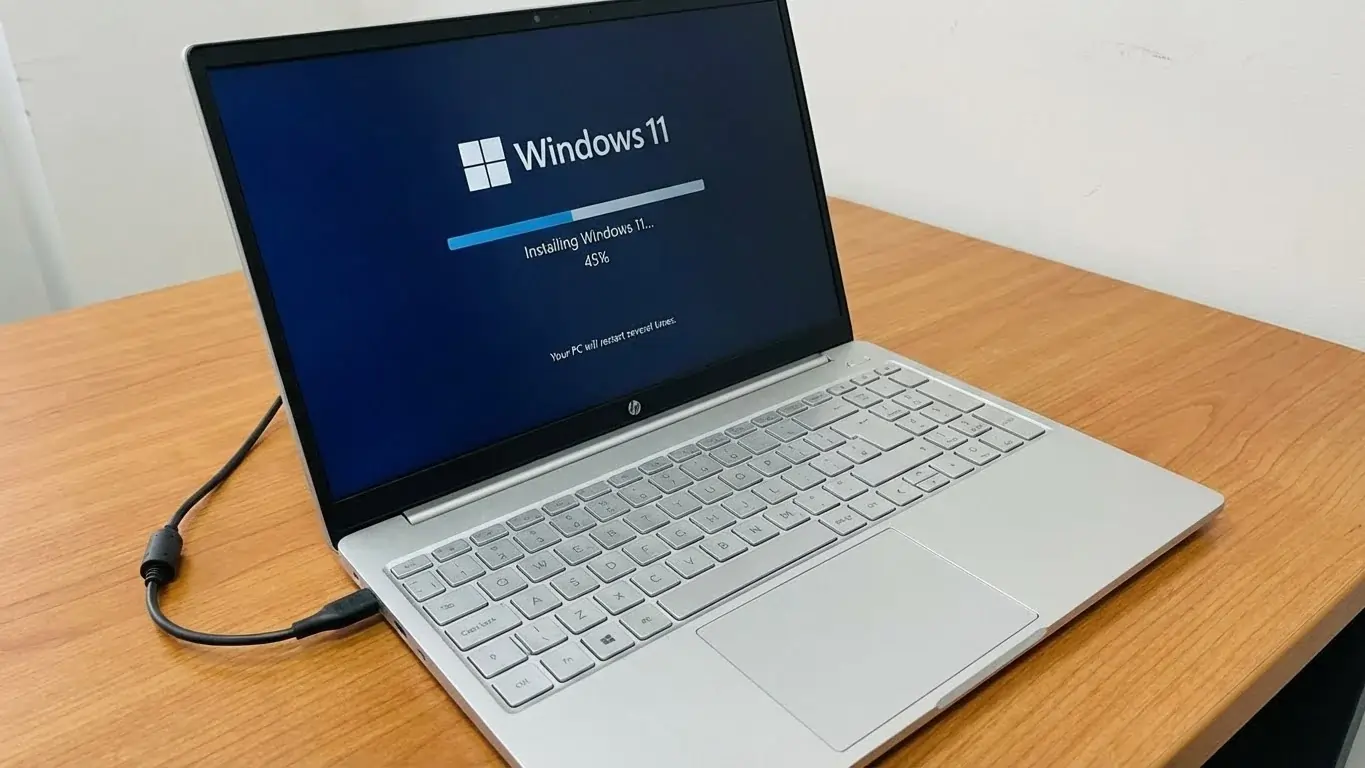
Hey, if your old setup feels sluggish and you’re eyeing that fresh Windows vibe, installing the latest version on your machine might just breathe new life into it. We’re talking about that clean interface, better security, and smoother multitasking everyone’s raving about in 2025. You know, it works great on most modern laptops, but older ones might need a check first. Surprisingly, the process isn’t as scary as it sounds—grab a USB, back up your files, and you’re halfway there. In this guide, we’ll walk through everything step by step, from checking if your rig qualifies to troubleshooting hiccups. Whether you’re upgrading from 10 or starting fresh, these tips make it straightforward. We’ll cover prep, media creation, the actual install, and what to do after. Ready to refresh your screen? Let’s get started!
Check If Your Laptop Can Run Windows 11
Before diving in, make sure your device is up for it—nothing worse than getting halfway and hitting a wall. Microsoft lays out clear specs: you’ll need a 64-bit processor, at least 4 GB of RAM, 64 GB storage, and a DirectX 12 compatible graphics card with WDDM 2.0 driver. Oh, and TPM 2.0 enabled in your BIOS— that’s the security chip that keeps things safe.
Head to Settings, click System, then About to peek at your processor type— it should say 64-bit. For the full scoop, download the PC Health Check app from their site; it scans and tells you straight up if you’re good. If not, you might tweak BIOS settings or consider a new laptop. Honestly, I wasn’t expecting my five-year-old machine to qualify, but it did after enabling TPM.
These checks save headaches. Short on RAM? Upgrade first.
Run the app. It flags issues fast. Kind of bold to skip this, right? But will your setup pass?
Back Up Your Stuff First
Don’t skip this—losing photos or docs stings more than you’d think. By default, upgrades carry over files, but a clean install wipes everything, so grab an external drive or cloud storage. OneDrive’s handy for syncing Desktop, Documents, and Pictures— just sign in and let it upload.
For older systems like Windows 7 or 8, follow their transfer guides to the cloud. I once forgot to back up a project folder during an update—had to redo hours of work. Ouch. Use File History or copy folders manually to a USB.
This step’s quick. Protects your memories.
We all have that one file we’d hate to lose. Ever had a close call?
Create Installation Media
Now for the fun part—making a bootable stick. You’ll need a blank USB with at least 8 GB; it’ll erase whatever’s on it, so double-check. Head to Microsoft’s download page and grab the Media Creation Tool. Run it as admin, accept terms, and pick your language and edition—match what you had, like Home or Pro.
Uncheck recommended options if you want custom picks, then select USB flash drive. It downloads files and sets up the media—takes about 30 minutes depending on your connection. Actually, in a way, it’s easier than burning DVDs back in the day.
Plug it in. You’re set to boot.
If you prefer an ISO, download that instead and use Rufus to make the USB bootable. Simple tweaks like these make the difference.
The Installation Process
With media ready, restart your laptop and boot from the USB—tap F12 or whatever key your model uses to enter boot menu; check online for yours. Or hold Shift while restarting to hit WinRE, then pick the drive. Set language, time, keyboard, and hit Install Now.
Skip the product key if reinstalling the same edition—it activates later. Choose your OS version, accept terms, then go Custom for a clean slate. Pick the primary partition— no need to format; it’ll reuse others like Recovery. Installation kicks off—don’t unplug or shut down.
It restarts a few times. Setup walks you through account linking. That’s actually a smart move for auto-activation. My install took under an hour on a decent SSD.
Patience pays off. Your screen refreshes soon.
If no drive shows, load drivers from your maker’s site. Covers most glitches.
After Installation Tips
Once up and running, sign in with your Microsoft account to pull back files and settings. Hit Windows Update right away—check for updates, install, restart, and repeat until clear. Personalize with Tips app for shortcuts, or grab apps from the Store.
Explore gestures if touchscreen, or tweak themes for fun. We recommend Microsoft 365 for productivity boosts. If issues pop, their help resources sort most.
Feels brand new. Worth the effort.
One time, post-install, my Wi-Fi lagged—driver update fixed it quick.
Common Issues and Fixes
Hiccups happen, like compatibility blocks— if Health Check says no, enable TPM in BIOS or update firmware. During setup, if activation fails, connect online and retry.
Blue screens? Roll back drivers or run troubleshooter. For non-compliant machines, Microsoft warns against forcing it—could miss updates and face bugs. You know, this could change everything if ignored.
Test hardware post-install. Smooth sailing usually.
Stuck on download? Check internet or try later.
Final Thoughts
Refreshing your laptop with this OS brings snappier performance and fresh features without buying new gear. From backing up to booting up, it’s doable in an afternoon if prepped right. We chatted requirements, media, steps, and fixes—now it’s your turn. Why not give it a go this weekend? Your machine awaits. What do you think?
