
I’d just finished building my shiny new gaming PC. Everything looked perfect… until I started plugging things in. Keyboard, mouse, headset, webcam, controller, external SSD, phone charger. By the time I reached for my drawing tablet, every single port was full. I actually sat there staring at the back of my case, whispering, “You’ve got to be kidding me.”
If you’ve ever found yourself in that exact spot, juggling cables and cursing under your breath, this guide is for you. Today we’re answering the question thousands of people Google every single day: “How many USB ports does my motherboard have?” — and we’re doing it in a way that actually makes sense.
Let’s fix this once and for all.
Why This Questioning “How Many USB Ports Does My Motherboard Have?” It Is Completely Normal in 2025
Ten years ago, four ports felt like plenty. Today? We’re charging phones, watches, wireless headset dongles, stream decks, RGB controllers, capture cards, and lightning-fast NVMe enclosures — sometimes all at once.
Real builders on Reddit and Discord constantly share the same story: they pick a motherboard for its CPU support or pretty RGB, then discover too late that they only have six usable ports. One guy wrote, “I literally can’t plug in my racing wheel because my VR headset and HOTAS already took everything.” Hundreds of upvotes. You’re not alone, and you’re not picky — you just have a life that needs more connections.
The Two Places Your Motherboard Hides USB Ports (Most People Only Count One)
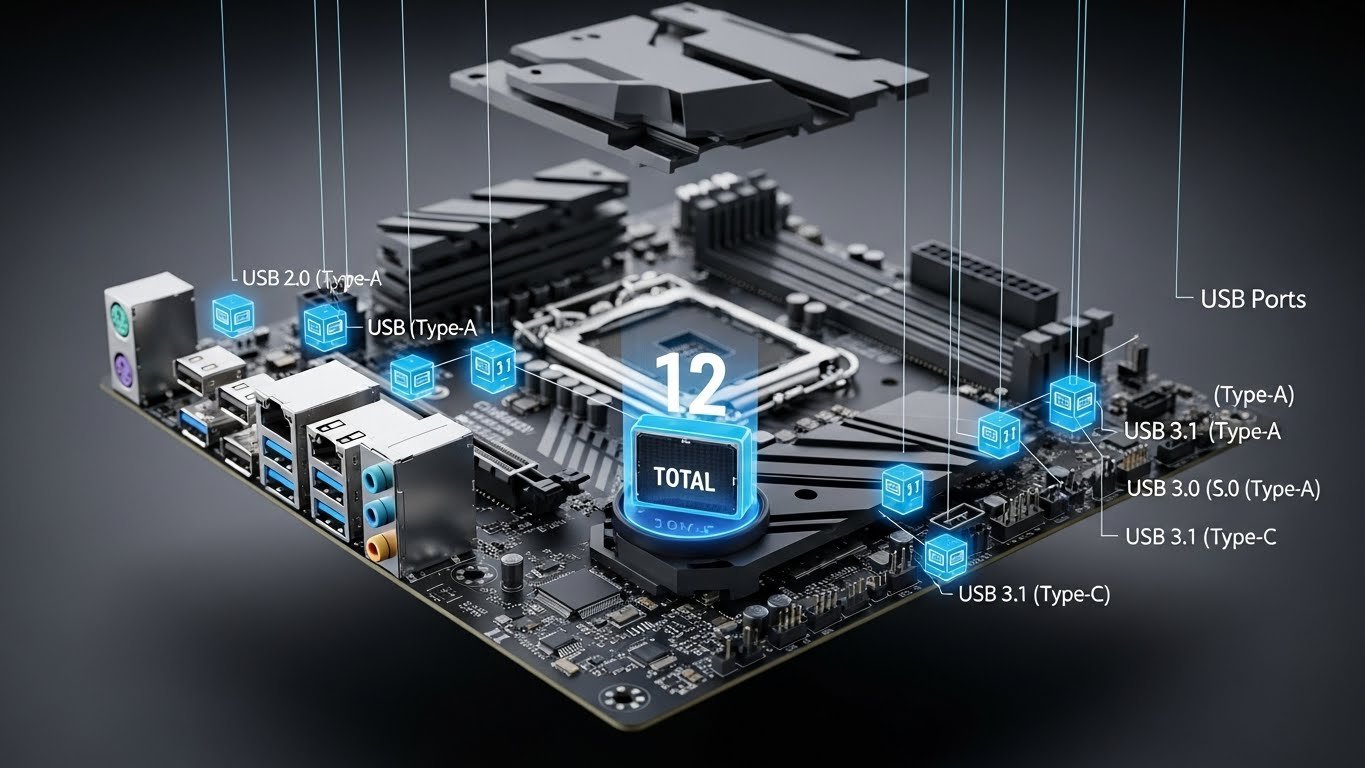
Here’s what trips everyone up. Your motherboard actually gives you USB ports in two completely different spots:
- Rear I/O panel — the ones you see on the back of your PC
- Internal USB headers — invisible pins inside the case that feed your front-panel ports, and sometimes extra brackets
Miss the second group, and you’ll think you’re stuck with half the ports you actually paid for.
Rear I/O Ports: The Ones You Stare at Every Day
Turn your computer around right now and count the USB slots sticking out the back. That’s your starting number. Budget boards usually offer 4–6. Mid-range boards jump to 8–10. High-end ones brag 10–14 (sometimes more if they include Thunderbolt or 20 Gbps USB-C).
These ports belong 100 % to the motherboard. Nothing you do to the case changes them.
Internal Headers: The Hidden Bonus Ports
Now comes the part most beginners completely miss. Open your case (power off first, obviously) and look along the bottom or right edge of the motherboard. You’ll spot little blocks of pins labeled things like USB 2.0, JUSB1, USB3, or Type-E.
Each header powers extra ports:
- Classic 9-pin header → 2 USB 2.0 ports
- Bigger 19-pin header → 2 USB 3.x ports
- Small Type-E header → 1 front-panel USB-C port
If your case came with front USB ports, thin cables already run from those pins to the front of the case. Unused headers? That’s free real estate you’re ignoring.
Add the rear ports + (headers × ports-per-header) and suddenly your “6-port motherboard” turns into a 12- or 14-port beast.
The Dead-Simple Ways to Find Your Exact Number (Pick One, Takes 2 Minutes)
You don’t need to be a tech wizard. Choose whichever method feels easiest.
Method 1: Grab the Manual or Box (Fastest)
Your motherboard box or paper manual has a spec table that literally says “USB ports” and lists everything — rear + headers. No box? Google your exact model number (printed on the board itself) + “manual PDF”. Takes thirty seconds.
Method 2: Let Windows Tell You
- Right-click the Start button → Device Manager
- Expand “Universal Serial Bus controllers.”
- Count every entry that says “USB Root Hub” or “USB Composite Device.”
Each root hub usually equals 2–8 physical ports. It’s not perfect, but it gives you a solid ballpark when you’re lazy.
Method 3: Download CPU-Z (Free & Takes 10 Seconds)
Run CPU-Z → Mainboard tab → note your exact model → Google “[your model] specifications”. Every major manufacturer (ASUS, MSI, Gigabyte, ASRock) lists the complete USB breakdown on the second you land on the official page.
I do this every single time I help a friend spec a new build. Never fails.
Real Motherboards, Real Numbers (So You Know What “Normal” Looks Like)
Still wondering where you stand? Here are current, popular examples:
- Budget king Gigabyte B650M DS3H → 4 rear + 3 headers = 10 total ports
- Sweet-spot ASUS TUF Gaming B760-Plus → 8 rear + 4 headers = 16 total ports
- Creator/gamer favorite MSI MPG X870E Carbon → 12 rear + 5 headers = 20+ total ports
Notice the pattern? Even “budget” boards quietly give you 10 ports once you count headers. You’re probably sitting on more than you think.
What to Do When You Actually Run Out (Yes, It Happens to Everyone)
Sometimes life wins, and you need more ports than the motherboard makers predicted. Don’t panic — here are the fixes that actually work.
Powered USB Hub — The $25 Lifesaver
Plug one good powered hub (Anker and Sabrent are bulletproof) into a single rear port and instantly gain 7–10 extra slots. Yes, bandwidth is shared, but for keyboards, mice, chargers, and printers, it’s perfect.
PCIe Expansion Card — The Pro Move
Slide a $30–50 card into an empty PCIe slot and gain 4–10 completely independent ports that don’t share speed with anything else. This is what streamers and video editors do when they refuse to compromise.
New Case with Better Front I/O
Some cases now ship with four front USB ports (including USB-C 20 Gbps). Swap the case, connect the extra headers you already have, and suddenly your same motherboard feels brand-new.
The 30-Second Checklist You Should Run Right Now
Grab a sticky note and write these numbers down today:
- Rear ports I can see: _____
- Internal USB 2.0 headers × 2: _____
- Internal USB 3.x headers × 2: _____
- Internal USB-C header × 1: _____
Add them up. That’s your real answer — the true number of USB ports your motherboard has been hiding from you.
I did this last weekend with my own rig. Thought I had eight. Actually have fourteen once I counted the unused headers. Felt like finding twenty bucks in an old jacket.
So tell me in your head (or out loud if no one’s around): How many did you just count?
Whatever the number, you now own the knowledge. No more guessing, no more frustration, no more crawling under the desk praying for one free port.
