
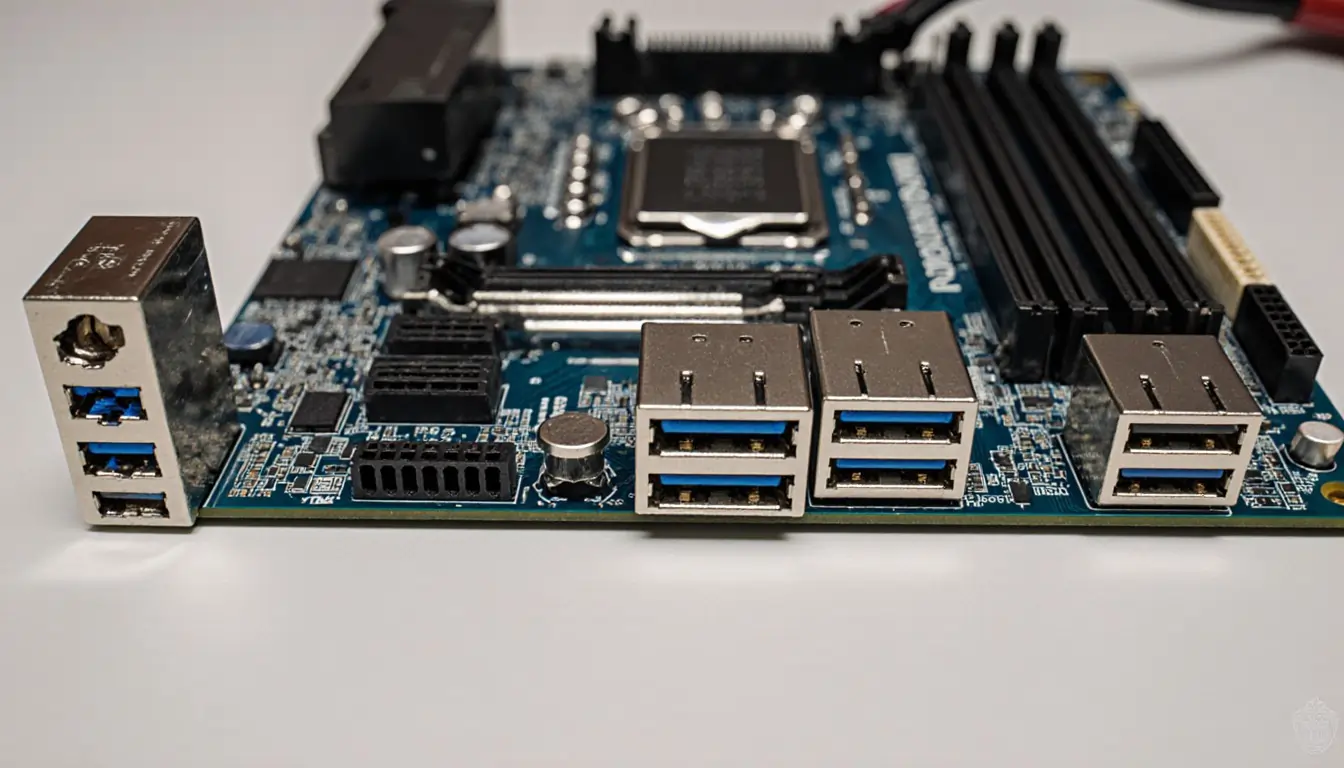
You’re here because you typed How Many USB Ports Does my Motherboard Have and want a straight answer. You don’t want fluff—you want a simple way to count every rear port, every front port, and what those internal headers really mean.
Keep reading and you’ll learn how to confirm your total, understand speeds, avoid common counting mistakes, and add more ports if you need them. By the end, you won’t have to guess again—everything you need is right below.
What You’re Really Asking
The Real Question Behind The Count
Most people asking how many usb ports does my motherboard have want the full picture: rear jacks you can see, front-panel jacks on the case, and the hidden headers on the board that power them. The trick is that one header can feed more than one jack, so the math isn’t always obvious.
The Three Layers To Know
Think in layers: 1) rear I/O jacks, 2) internal headers that connect to your case, and 3) the controller or hub behind them. Once you see those three, counting becomes easy and consistent.
Quick Answer And How To Confirm
Quick Answer You Can Trust
Your total is rear I/O ports + ports provided by internal headers. A typical USB 2.0 header often supports two ports, a classic 19/20-pin USB 3 header often supports two ports, and a Type-E front USB-C header usually supports one port. Add those to what you see on the back.
The Five-Minute Confirmation Plan
Count back ports by eye, note the headers on your board (they’re labeled), and match them to your case cables. If you still wonder How Many USB Ports Does my Motherboard Have, do a quick software check to map everything—more on that below.
Rear I/O Ports You Can See
Count What’s On The Back First
Turn the PC around and count every USB-A and USB-C jack. That gives you a hard, no-guess baseline. If labels mention 5 Gbps, 10 Gbps, or 20 Gbps, jot those down—they matter for fast drives and capture cards.
Note Special Markings And Colors
Some boards color USB 2.0 differently from SuperSpeed ports, and some mark BIOS-flash ports. If you’re asking How Many USB Ports Does my Motherboard Have, those markings help you separate slow from fast at a glance.
Internal USB Headers For Front Ports
USB 2.0 And 19/20-Pin Headers
Inside the case, you’ll find small headers labeled for USB. A 9-pin USB 2.0 header usually supports two front USB 2.0 jacks. The wider 19/20-pin header for USB 3.x usually supports two front USB-A jacks via one cable.
Front USB-C Type-E Header
Many newer boards include a slim, rectangular Type-E header that feeds one front USB-C port. If your case has a front USB-C, this is the cable you’ll see plugged into that header.
USB Speeds And Labeling Explained
Simple Names You Can Use
Plain English helps: USB 2.0 (480 Mbps), USB 3.2 Gen 1 (5 Gbps), USB 3.2 Gen 2 (10 Gbps), and USB 3.2 Gen 2×2 (20 Gbps, usually USB-C only). If you’re still thinking How Many USB Ports Does my Motherboard Have, also ask “how fast are they?”
Why The Speed Label Matters
A fast SSD or capture card can choke on a slow port or a shared hub. Note which jacks are 5/10/20 Gbps so you plug speed-hungry gear into the right ones.
Map Your Ports In Software
Windows Methods
Open Device Manager and view devices by connection to see controllers, root hubs, and branches. This shows which physical jacks hang off each hub. If you’re not sure How Many USB Ports Does my Motherboard Have after counting, this view settles it.
Linux Methods
Use lsusb -t for a tree view. You’ll see the controller → hub → device chain. This helps you spot when several jacks share one hub, which explains slowdowns when many devices are busy.
Why Counts Go Wrong And Easy Fixes
Hubs, Cables, And Case Wiring
A case may present four front jacks, but the case’s internal hub might run them from one header—so you don’t gain four independent connections. Also, power-only cables can make a port appear “dead” for data. Reseat and confirm the right header.
Bandwidth Sharing And Power Limits
If several high-speed devices sit on one hub, speeds fall. Spread devices across different rear ports or different internal headers. If you ask How Many USB Ports Does my Motherboard Have and still see slowdowns, the issue may be bandwidth, not count.
Add More Ports Safely
PCIe USB Cards And Powered Hubs
Need more? Add a PCIe USB expansion card to create new controllers and ports. For many devices or bus-powered SSDs, use a powered hub to avoid brown-outs and random disconnects.
Make The Most Of Spare Headers
If your board has unused USB 2.0 or 19/20-pin headers, you can add a front-bay module or bracket to turn those headers into usable jacks. It’s a quick win when you’re short.
Your Simple Counting Worksheet
Fill-In Totals
- Rear USB-A: ___
- Rear USB-C: ___
- USB 2.0 Headers (×2 each): headers ___ → ports ___
- 19/20-Pin Headers (×2 each): headers ___ → ports ___
- Type-E Front USB-C Headers (×1 each): headers ___ → ports ___
Final Math And Quick Check
Add rear ports to header-driven ports for your grand total. If you still ask How Many USB Ports Does my Motherboard Have, map the tree in software and match each physical jack to a branch to confirm.
FAQ’s
1. How Do I Check What USB Ports My PC Has?
Open your case’s rear I/O and count the USB-A and USB-C jacks. Then, inside Windows, use Device Manager → View → Devices by connection to see controllers, hubs, and ports. If you’re still unsure how many USB ports does my motherboard have, look for internal headers on the board (USB 2.0, 19/20-pin, Type-E) that feed your front-panel ports.
2. What Happens If You Plug A USB 2.0 Into A USB 3.0 Port?
It works—USB is backward compatible. The device just runs at USB 2.0 speed (up to 480 Mbps), not at 5/10/20 Gbps. So your keyboard, mouse, or older flash drive will be fine, but a fast SSD will be limited by the slower USB 2.0 rate.
3. Does My PC Have USB 4?
Not all PCs do. Check your motherboard manual or Windows Device Manager for “USB4” or “Thunderbolt” under controllers. Many newer boards advertise USB4 on the spec sheet; if you don’t see it listed, you likely have USB 3.x only. If you’re asking how many USB ports does my motherboard have, also note which—USB4, 3.2 Gen 2, or 2.0.
4. How Many USB Ports Does The Average PC Have?
A typical modern desktop has 6–10 rear ports plus 2–4 front ports, depending on internal headers and the case. Laptops vary more, usually 2–4 total. Your exact count comes from rear I/O plus the ports driven by your motherboard’s headers.
5. Do All PCs Have USB 3 Ports?
No. Most modern systems do, but very old desktops and budget mini PCs might only have USB 2.0. Check port labels or colors, your motherboard’s spec page, or Device Manager. If you need faster speeds and you’re short, add a PCIe USB 3 card on desktops or use a powered hub where supported.
Conclusion and Final Check
You started with How Many USB Ports Does my Motherboard Have and now you’ve got a clean way to answer it every time. Count the rear jacks, add the ports provided by your internal headers, note speeds, and map the tree in software if anything feels off.
If you need more ports, add a PCIe card, use a powered hub, or tap spare headers. Simple steps, no guesswork, and no links—just a clear process you can trust.
